Research and Team panels
Read the Research tree, start a Study, and use the Team panel to hire engineers, set policies, run the backlog, and deploy.
Press R to open Research and spend Insight on a Study. Press T to open Team and spend Dev Hours on Features. Both panels fill the board, and Esc closes them.
The Research panel#
The Research button is in the toolbar at the top right. It shows up the first time your Insight can pay for an item, and a badge counts the items you can afford. Before that, R does nothing.
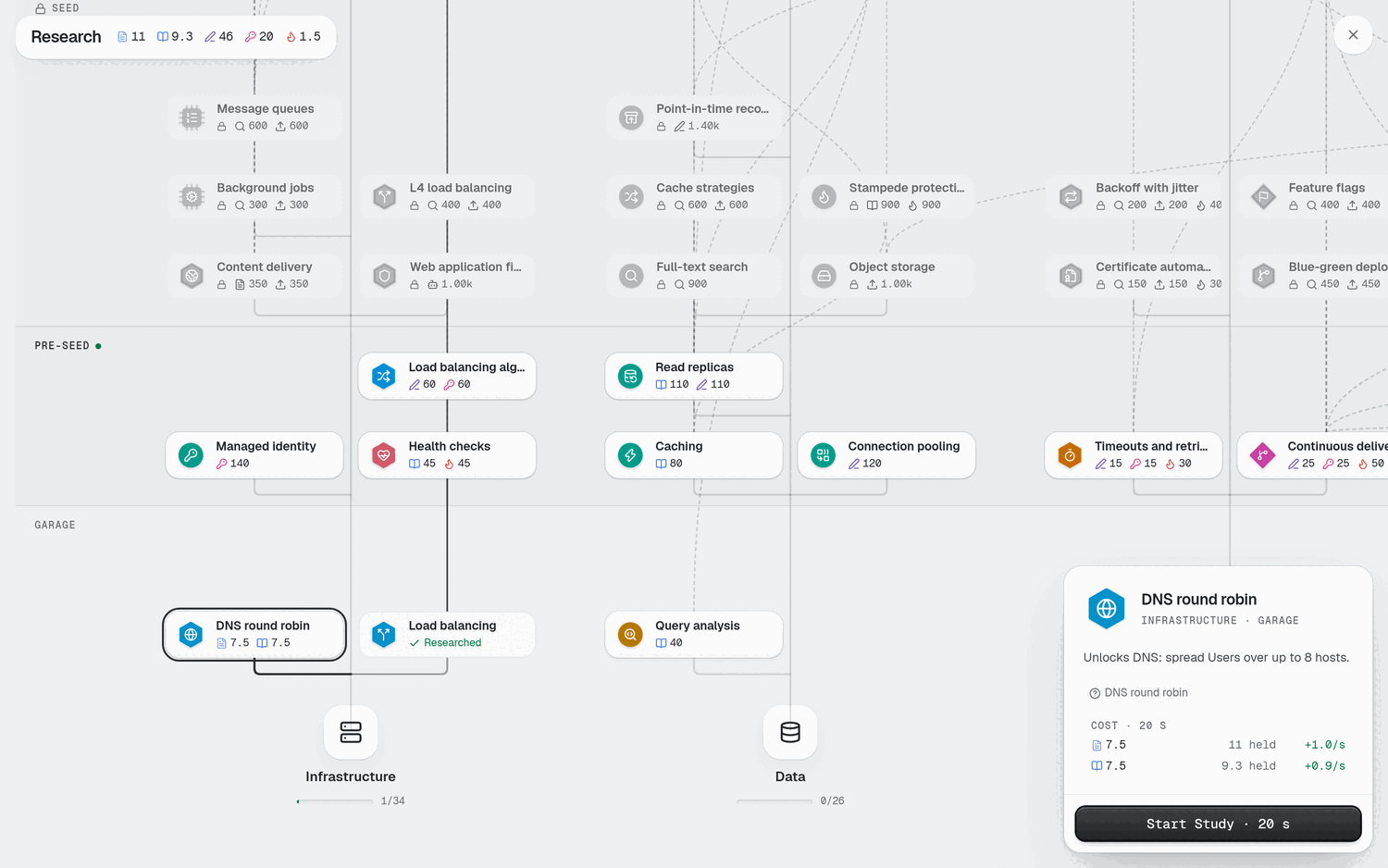
Look at the header chips. Each chip is one Insight pool and the amount you hold. Then look at the tree: each track grows up from its root, with one band per Era. The tracks are Infrastructure, Data, Reliability, Observability, Performance, Runtimes, Frameworks, Security, Product, and Cost.
Read an item#
Click an item to focus it. The detail card at the bottom right shows:
Cost: one row per pool in the item's recipe. Each row shows the cost, how much you held, and the rate the pool earns per second. A held amount in amber means you cannot pay yet.
Requires: the items you must own first. Click one to jump to it.
Leads to: what the item opens.
The card's main button says what you can do now:
| Button | Meaning |
|---|---|
| Start Study | You can start it. The button also shows how long it takes. |
| Studying · n% | It runs now. |
| Study now | It waits in the queue. Select it to move it to the front. |
| Opens in Era | The Era has not started yet. |
| Needs item | A prerequisite is missing. The button names it. |
| Researched | You own it. |
A locked item is not an error. It tells you what to do next: reach the Era, or study the named prerequisite first. A warning in the card, such as a pool that earns nothing, tells you why a Study will stall. Read Earn Insight and research for where Insight comes from.
Start and queue a Study#
Press
R.Click an item whose button reads Start Study.
Select Start Study. The Insight card on the HUD shows the Study's name and its percentage.
Press
Escto go back to the board. The Study keeps running.
To queue more, pick another item and select its button, or double-click it in the tree. The queue holds eight Studies. Under the card, Move up, Move down and Cancel reorder or remove a queued Study. Cancel loses its progress.
Mistakes to avoid:
Do not leave an unaffordable Study at the front of the queue. It holds every Study behind it, and the card says so.
Do not hoard Insight. A pool stops filling at its cap.
The Team panel#
The Team button appears after your first Feature ships. An amber dot on it means the backlog is empty. For the rules behind the numbers, read Team and velocity.
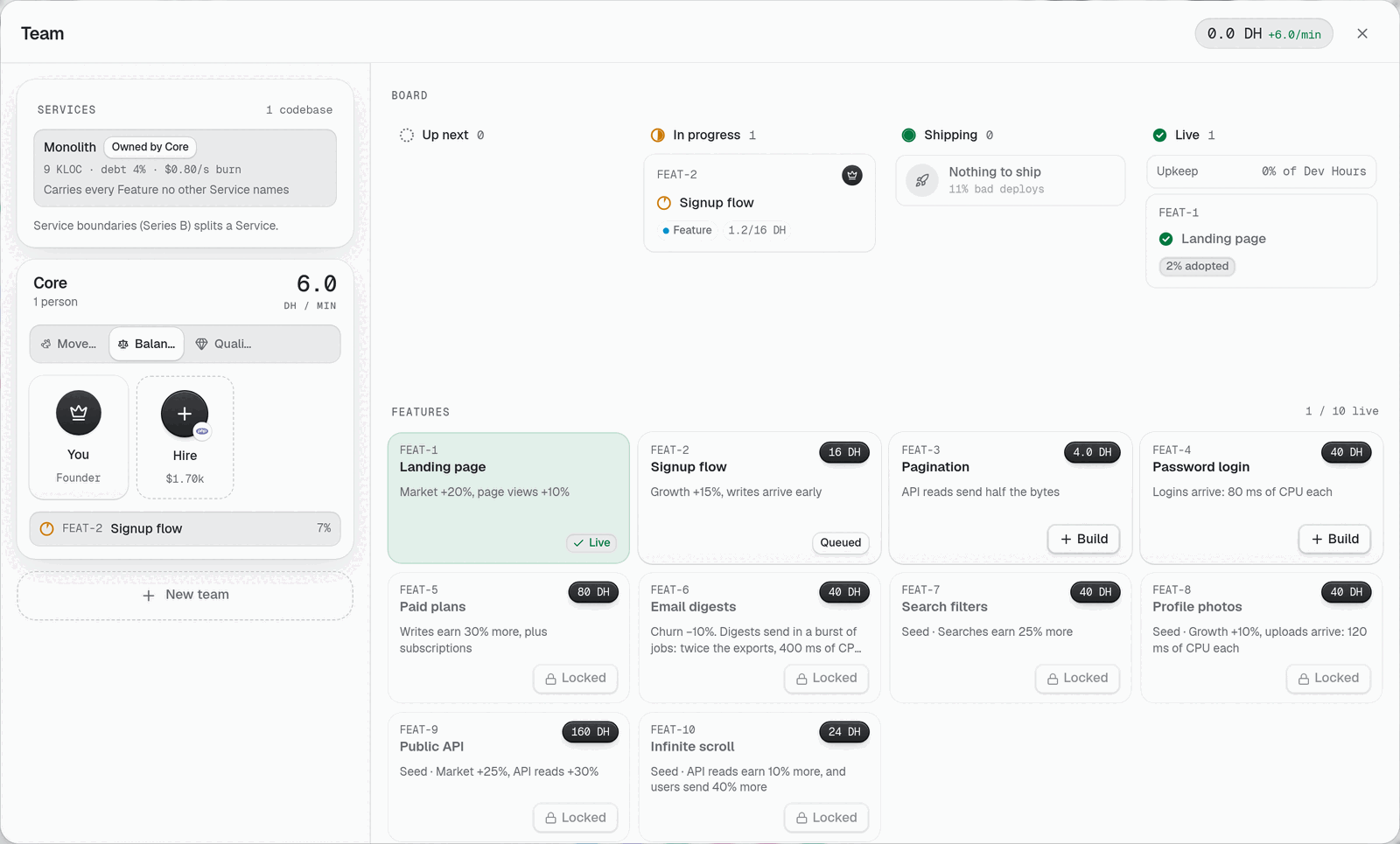
The header shows your Dev Hours balance, its rate per minute, and the payroll per second. The panel has two halves.
The floor (left)#
The floor shows one card per Team. Each card lists its engineers, starting with Founder (labelled "You"). Each engineer shows a salary per second, or Ramping while they are new.
Select Hire on an empty seat. The seat's label names the language, for example "Hire Python engineer for $x". It reads Locked until Pre-seed, and it is greyed when you cannot pay the signing cost.
To move an engineer, drag them to another Team, or use the move button on their card.
To lay someone off, hover their card and use its Lay off button.
Select New team to add a Team. A Team has a kind: Product, Platform, SRE, Data or Security.
A Product team has three policies: Move fast, Balanced and Quality. They trade speed against debt and bad deploys. The other kinds run the system and do not build Features: SRE holds the pager, Data runs the warehouse, Platform runs Clusters and deploys, and Security handles patches and compliance.
The Board (right)#
The Board has four columns: Up next, In progress, Shipping and Live.
Find a tile under Features. Select Build to add it to the backlog.
Watch it move to In progress. Teams spend Dev Hours on it.
A finished item waits in Shipping. The deploy card says Deploy in and a time, then the Feature goes Live.
Use the lightning button on a backlog item to Rush it with Dev Hours. Use Cancel to drop it.
Under Engineering, select Queue on a tile to pay down tech debt or fix a leak. The row appears when something needs fixing.
The deploy card also shows a % bad deploys line. A high figure means a deploy may break the App Servers. The bad deploy banner on the next page shows how to roll one back.
Autopilot#
The Autopilot switch in the Board header turns on the backlog's automatic mode. It shows once the backlog holds two items. Three more switches appear only when your Autopilot perk has the level for them:
Queue the cheapest Study
Hire while payroll is under a quarter of revenue
Buy the next size for App Servers above 70% load
The perk is a Legacy purchase, so a new Company shows none of them. Read Legacy.
Mistake to avoid: hiring early to speed up. More engineers cost payroll every second, and coordination slows a large Team. Read the explanation page before you hire the fifth.